Extend C Drive to Unallocated Space - Even When It's Not Adjacent
The safe, easy way to expand your system partition without data loss. Bypass Windows native limitations and resize partitions in seconds.
Windows 11/10/8.1/8/7 & Server
180+
Countries & Regions
80M+
Users Worldwide
6000+
Partners
17+
Years Experience
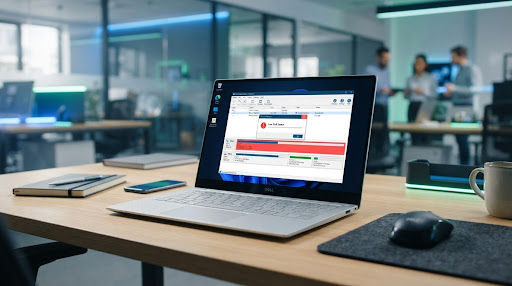
Can't Extend C: Drive with Windows Disk Management?
Windows built-in Disk Management has strict requirements. If your disk layout doesn't meet these criteria, the "Extend Volume" option will be greyed out.
Unallocated space is on the left side of C:
Windows can only extend a partition if the unallocated space is directly on the right.
Unallocated space is not directly adjacent
If another partition (like D: or Recovery) sits between C: and the free space, you're stuck.
No unallocated space exists on the disk
Standard tools can't pull free space from existing active partitions like D: to C:.
System partitions block the way
Hidden recovery or EFI partitions often prevent manual expansion of the boot drive.
PartitionAssistant - Powerful Partition Extend Tool
Break the limits of Windows Disk Management. Our intelligent engine handles the complex disk re-mapping so you can extend partitions with a few clicks.

-
expand
Resize/Move Partition
Move unallocated space from one end of the disk to the other without touching data.
-
call_merge
Merge Partitions
Directly combine two adjacent partitions or merge unallocated space into any existing drive.
-
add_chart
Allocate Free Space
Take free space from D: and give it to C: directly in one single step.
-
move_item
App Mover
Transfer installed programs between drives to free up system partition space instantly.
How to Extend C: Drive with PartitionAssistant?
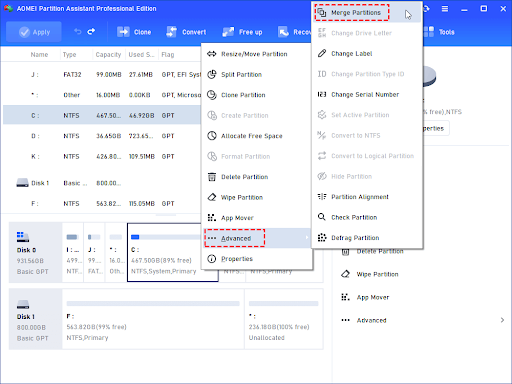
Select D Drive to Allocate
Open PartitionAssistant. Right-click on a drive with enough free space (like D:) and choose the "Allocate Free Space" option from the context menu.
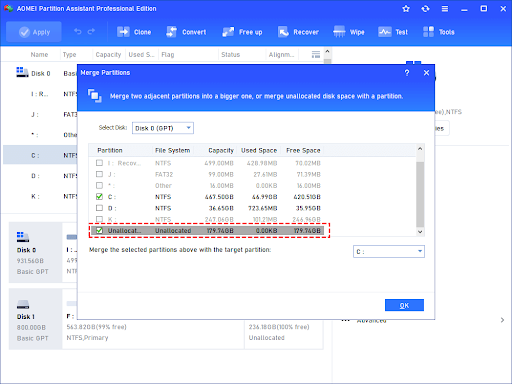
Allocate Free Space to C Drive
In the pop-up window, enter the amount of free space you want to cut from D: and select C: as the target drive to receive it.
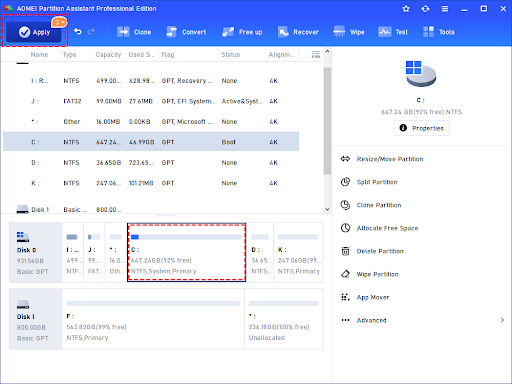
Apply the Operation
Click 'Apply' on the main toolbar to execute the pending operations. Your computer will safely rearrange the data to extend the system partition.
What Makes PartitionAssistant Different?
No Adjacency Requirement
Move, merge, or allocate space regardless of where it is on your physical disk. No need to delete partitions.
Data Safety Guarantee
Advanced sector-by-sector protection ensures your files remain intact even during complex movement.
Intuitive Interface
Designed for humans, not just sysadmins. Visual cues and wizards guide every action simply.
Comparison: The Best Tool for the Job
| Feature | PartitionAssistant | Disk Management | DiskPart (CLI) |
|---|---|---|---|
| Extend Non-adjacent Space | Supported | Greyed Out | Error Message |
| Allocate Free Space Directly | Supported | Impossible | Impossible |
| Move Partition Position | Supported | No Support | No Support |
| Data Loss Risk | Zero Risk | High (Requires Delete) | Very High |
| Ease of Use | Beginner Friendly | Moderate | Experts Only |
PartitionAssistant Gives You More Than Just Extending C Drive
Extend C: Drive
Easily extend the C: drive to free up space and improve performance.
Merge Partitions
Combine two partitions into a larger one, or add non-adjacent unallocated space to any partition.
Create/Delete/Format Partition
Easily create new partitions, delete unnecessary ones, and format them to the file system you need in a single step.
Resize/Move Partition
Solution to "Extend Volume" greyed out or "Shrink Volume" not enough space. Easily adjust partition sizes.
1-Click Adjust Space
Automatically redistribute disk space between partitions with one click for fast and balanced storage optimization.
Extend Partition Wizard
Extend partitions by reallocating free space from other partitions without data loss, helping resolve low disk space issues easily.
Dynamic Volume Management
Extend, shrink, create, delete dynamic volumes, including simple, spanned, striped, mirrored, and RAID-5 volumes.
Rebuild MBR
Rebuilding the MBR involves recreating the MBR code and restoring the partition information to allow the computer to boot from the disk again.
Extend Partition Wizard
Extend partitions by reallocating free space from other partitions without data loss, helping resolve low disk space issues easily.
Change Partition Type ID
Changing the partition type ID can be useful when converting a partition from one file system to another.
Dynamic Volume Management
Extend, shrink, create, delete dynamic volumes, including simple, spanned, striped, mirrored, and RAID-5 volumes.
App Mover
Moves programs or large folders from one drive to another, especially helpful to free up C: drive to improve PC performance.
Wipe Disk and Partition
Permanently and safely erase all data on partition or hard drive to prevent data from being retrieved by any data recovery software.
Partition Recovery
Fast search helps you quickly recover deleted or lost partition. Full search will scan each sector of the selected disk for recovery.
Make WinPE Bootable Media
Make a Windows PE bootable CD/DVD or USB to troubleshoot system problems and recover data when the native system fails to boot.
Windows To Go Creator
Create Windows 11/10/8/7 To Go bootable USB drive. Build a portable and functional Windows 11 system on USB flash drive to upgrade easily and safely.
Words from Users
"I had unallocated space stuck behind my recovery partition and Windows wouldn't let me extend C:. PartitionAssistant moved the space in 2 minutes. Life saver!"
David M.
IT Support Specialist
"The interface is so clean. I was terrified of losing data while resizing my laptop's drive, but the wizard guided me perfectly. Everything is working fine!"
Rachel T.
Freelance Designer
"Used this for migrating a server OS to a new NVMe drive. Smooth process, resized the partitions on the fly. Definitely worth the pro version."
Kevin H.
Systems Administrator
Extend C: Drive to Unallocated Space Flexible
You have the unallocated space. You just need the right tool to use it. Download PartitionAssistant today and take control of your disk storage.